Ask Lux
Ask Lux is an AI-powered chat assistant built into Corelight Investigator that helps you investigate threats, understand detections, and answer questions about your network data. Ask Lux is available from any page in the platform, giving you on-demand access to AI analysis without leaving your current workflow.
When you open Ask Lux, it connects you with specialized agents that work together to answer your questions. The Lux Agent handles general questions about Corelight, Zeek, and network security concepts. When deeper analysis is needed, the Investigation Agent runs LogScale queries against your tenant data to provide data-driven answers about specific entities, detections, and network activity.
Note
Before you start:
Ask Lux requires the GPT (Private data) integration to be enabled. See GPT integrations for setup instructions.
An administrator must also enable the ChatOps toggle on the GPT (Private data) integration settings page. Ask Lux is off by default and can be disabled at any time by turning off the toggle or by disabling GPT (Private data).
Important
Responses from Ask Lux are produced by Corelight’s Lux AI using a large language model. AI-generated answers may contain errors or omissions. Always use your judgment and verify findings against the raw evidence before taking action.
Open Ask Lux
You can open Ask Lux from anywhere in Investigator using either of two entry points:
Ask Lux button: Click Ask Lux in the top navigation bar. This opens the chat using whichever layout you last used, floating by default in a new session.
Floating Lux button: Click the Lux icon in the bottom-right corner of any page. This opens the chat as a floating window that overlays the current content. The floating layout is the only option available when a modal or side panel (such as alert details or an entity modal) is already open.
Both entry points open the same chat experience with the same capabilities.
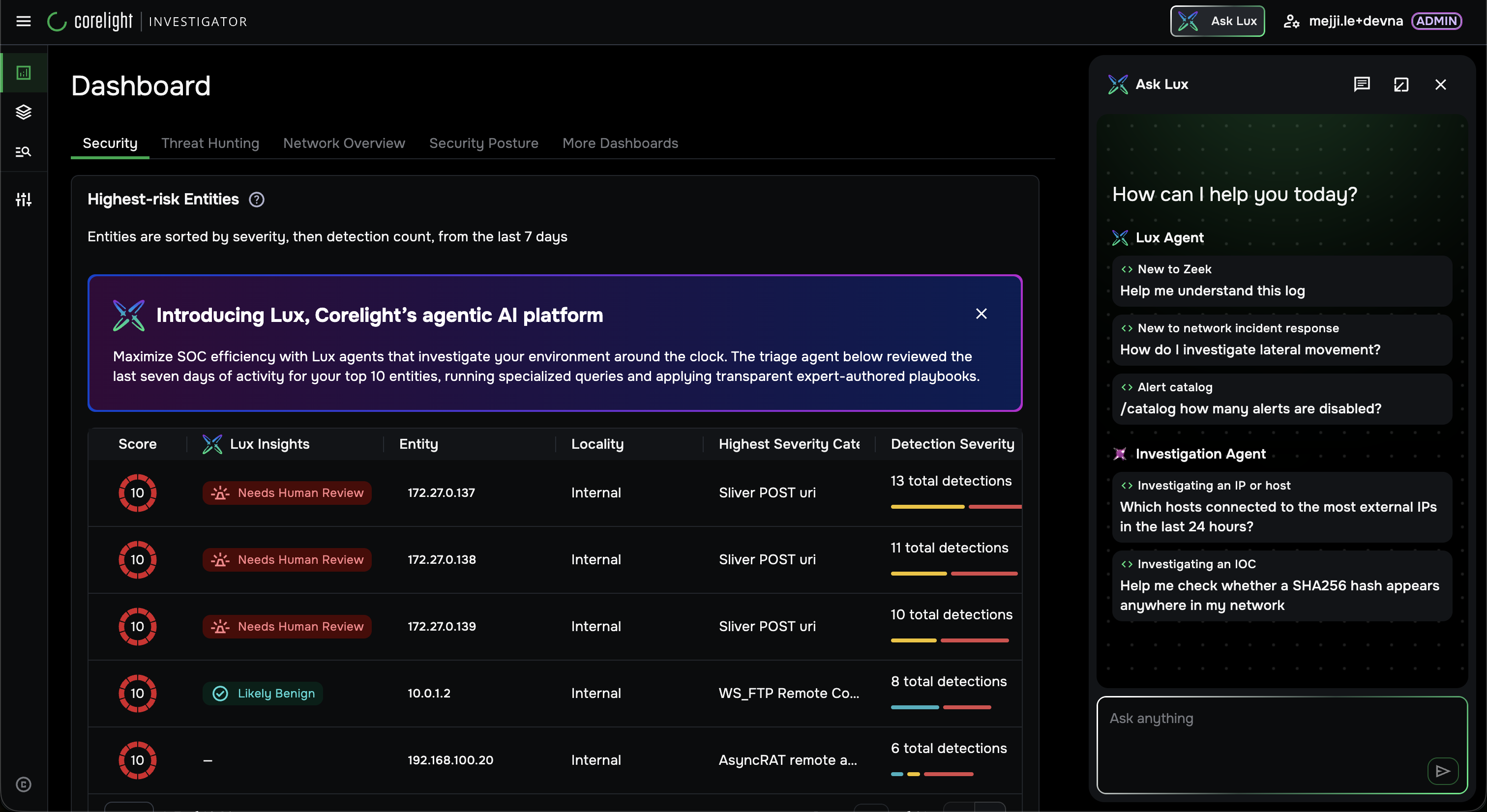
The Ask Lux panel with the Lux Agent and Investigation Agent profiles and example questions.
Understand the agents
Ask Lux uses specialized agents to answer different types of questions. Click any agent name in the chat panel to open its profile card, which explains the agent’s capabilities and lists example questions.
Lux Agent
The Lux Agent answers general questions about Corelight, Zeek, network security, and how to use the Investigator platform.
Example questions:
“Help me understand this log”
“What type of attack might be associated with this alert?”
Investigation Agent
The Investigation Agent runs LogScale queries against your tenant data to answer questions about specific entities, IP addresses, domains, and network activity.
Example questions:
“How many external IPs has [IP] connected to over the last 24 hours?”
“Does this SHA256 hash [hash] appear anywhere in my network?”
Coming soon
If you ask a question that requires a capability not yet available, such as detection tuning or threat hunting, Ask Lux responds with a Coming Soon card that describes an upcoming feature and what it will do. Below the card, Ask Lux suggests alternative questions you can ask now using the currently available agents.
Ask a question
When you first open Ask Lux, the chat panel displays a welcome message with example questions.
The Lux Agent attempts to answer first. If deeper analysis is needed, it hands off to the Investigation Agent, which runs queries against your data and returns a detailed response. You can expand the reasoning sections in any response to see the steps the agents took to arrive at their answer.
Work with responses
Each response from Ask Lux includes thumbs up and thumbs down icons for rating the quality of the answer, and a copy icon for copying the full response text to your clipboard.
Use page context
When you open Ask Lux from certain pages, context is automatically attached to your conversation so the agents can provide targeted analysis.
Detection details
When you open Ask Lux from a detection detail page, the detection name and entity IP address appear as a context chip above the input field. Any question you ask is interpreted in the context of that detection.
To ask a general question unrelated to the current detection, click the X on the context chip to remove it.
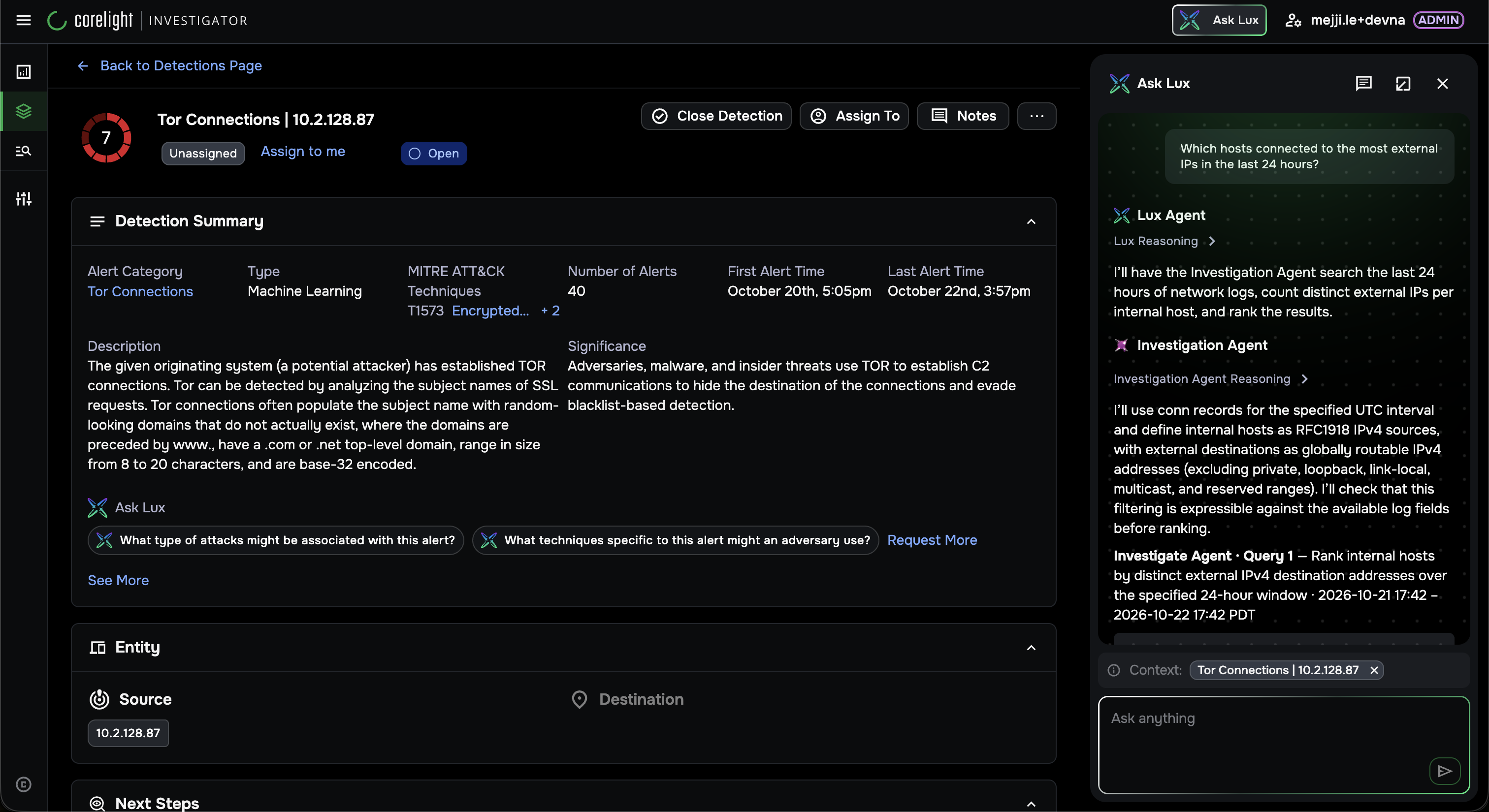
Ask Lux on a detection page with the context chip and the Investigation Agent running a query.
Log text
You can copy and paste log entries or other large blocks of text into the chat input. When the pasted content is large, Ask Lux compacts it into a small text attachment below the input field. The attachment carries into the conversation, and the agents use it as context for their response.
Entity modal
When you open Ask Lux while viewing an entity modal, the floating Lux button overlays the modal so you can ask questions about the entity without closing it.
Understand daily usage limits
Ask Lux has a daily usage limit that resets at midnight. The chat panel displays usage information so you know how much of your daily allowance remains.
When nearing the limit
When you are close to your daily limit and the Lux Agent needs to hand off to the Investigation Agent, you see a “Bring in an agent” prompt with the Investigation Agent listed and Approve and Cancel buttons. This lets you decide whether to use your remaining allowance on the deeper analysis.
Click Approve to proceed with the Investigation Agent analysis.
Click Cancel to stop the handoff. You can undo the cancellation if you change your mind.
When the limit is reached
When you have reached your daily limit, Ask Lux displays a “Daily limit reached” message.